
Accesserty DevCheck
Check accessibility on localhost, staging sites and pages behind a login, or inspect PDF structure. Start with local scans, then review the findings manually. Optional AI semantic checks transmit sampled content.
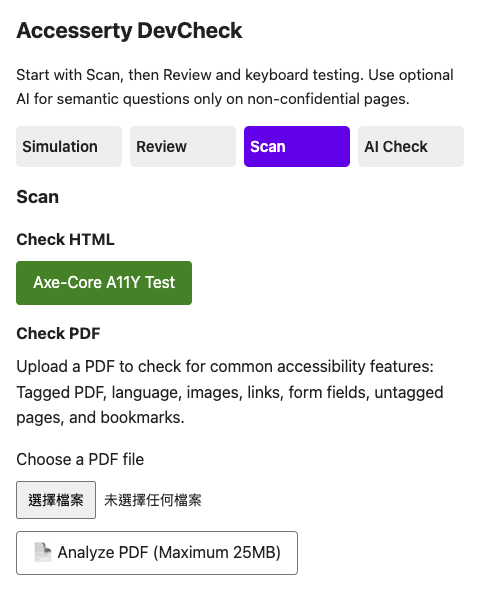
Check the page state you are actually using
DevCheck does not replace accessibility expertise. It gives people reviewing pages and PDFs a practical first check when they notice a concern.
You can check public pages, local builds, staging sites, authenticated flows, interaction states, and PDF documents without sending the page to an external URL scanner.
Scan after revealing form errors, signing into a test account or opening a dialog, then re-test that same state after a fix. For PDFs, select a local file in Scan; it is not uploaded to a server.
Most checks run in the browser. Only the optional AI Semantic Check sends a bounded sample of visible text, link names, and selected page-readable images to Google Gemini after you explicitly start it; it does not send the page URL, link destinations, or image source URLs.
What you can check first
Make accessibility issues concrete first, then let the right person review, fix, and re-test them.
Automated web accessibility scan
Use axe-core for machine-detectable WCAG A/AA and best-practice findings. Confirmed findings and items needing manual review are separate, with every affected element listed and a copyable summary.
Visual and sensory review
Switch color vision, text spacing, visual field loss, presbyopia, myopia, and cataract modes to review readability risks in real page states.
Manual review lenses
Use Focus Path, Heading Structure, Landmark Regions, image alt overview, and touch target size to draw page structure and common interaction risks for manual review; orange hints mean review manually, not confirmed failures.
AI-assisted semantic check
Review whether link names and surrounding text convey a clear purpose, plus language marking and image alt suggestions. It does not inspect link destinations to verify their content. Results show sampling and skipped counts, not whole-page coverage.
PDF accessibility structure signals
Inspect basic PDF accessibility signals such as language, tags, links, images, form fields, bookmarks, and page structure consistency.
Who should use DevCheck?
- Designers
Use simulations for color vision, text spacing, visual conditions, and touch targets as concrete input for design reviews and cross-functional discussion.
- PMs and product people
Copy review summaries into your existing issue tracker to discuss, track and assign work. DevCheck does not provide issue management.
- Engineers and QA
Run web accessibility scans and simulations in local builds, staging pages, authenticated flows, and regression checks so issues are found earlier and re-tested faster.
It does not replace a full audit
DevCheck is useful for first checks, issue discussion, and re-testing fixes. It is not an ADA compliance checker or a legal certification tool. Formal accessibility audits still require human judgment, keyboard testing, assistive technology testing, and contextual review.
AI Semantic Check provides assistive suggestions, not a compliance guarantee. Do not use it on confidential or unauthorized pages, and review suggestions before applying them.
How to start checking
Install the browser extension (Chrome/Edge or Firefox), then open the page you want to inspect.
- Step 1. Install Accesserty DevCheck
Install the extension from the Chrome Web Store or Firefox Add-ons.
- Step 2. Open the page you want to check
It can be a public page, local build, staging site, authenticated flow, interaction state, or PDF document.
- Step 3. Run a scan, review lens, simulation, or semantic check
Start with Scan, then Review and actual keyboard testing. Use optional AI only for semantic questions on non-confidential pages. Paste summaries into your issue tracker and re-test the same page state after fixing it.
Pre-release accessibility check workflow
Use this path when you need to check a page, not just read about accessibility. It connects automated checks, keyboard review, semantics, content, visual states, PDF structure, and remediation into one review sequence.
- Step 1. Start with the page and release scope
How to test website accessibility before launch
Decide whether the review covers a public page, local build, staging page, authenticated flow, interactive state, or PDF.
- Step 2. Run the first automated check
What automated accessibility checks can and cannot find
Use scan results to find machine-detectable issues while keeping the parts that still need human judgment visible.
- Step 3. Review keyboard and focus path
How to check keyboard focus path
Check whether focus can move, whether the order makes sense, whether focus gets trapped, and whether the path matches the page context.
- Step 4. Review accessible names
How to implement accessible names
Check whether buttons, links, form controls, and interactive components expose understandable names.
- Step 5. Review image alternatives
How to write meaningful image alt text
Review alt text based on the image purpose in context, not only what appears visually.
- Step 6. Review color, states, and readability
Color contrast checks before release
Check real states such as text, focus, errors, hover, disabled controls, icons, and component boundaries.
- Step 7. If PDFs are in scope, inspect structure signals
PDF accessibility structure checks
Review language, tags, images, links, forms, bookmarks, and page consistency signals.
- Step 8. Turn findings into a remediation plan
Web accessibility remediation plan
Organize next steps by user task, impact scope, owner, repair level, and re-test method.
Frequently asked questions
Only starting AI sends sampled text, link/alt metadata and page-readable images; samples may include CSS-clipped text, hidden ARIA references and SVG titles. URLs within sampled content are not redacted. Shared AI passes through Accesserty for quotas; a custom key goes directly to Google. Under Google’s unpaid-service terms, inputs and outputs may support improvement and human review; custom keys still follow project billing status and applicable regional terms. Do not submit confidential, unauthorized or personal information to unpaid AI. Results distinguish complete, partial and unusable responses. Incomplete does not mean no issues, and submitted shared requests still count toward quota. Local copied/downloaded reports may include the page URL and sampled text; review before sharing.
Browser-internal and store pages restrict extensions; use localhost for local development. Re-scan or refresh review lenses after interactions or content changes. Protected frames and closed shadow roots may not be locatable. PDF checks provide structure signals, not PDF/UA conformance. AI uses a bounded sample: editable content and some CSS-hidden text are excluded, but clipped text, accessible names and SVG titles may still be sent. URLs inside sampled content are not redacted. Some images and over-limit items are skipped; cross-origin protection, loading failures or encoding limits may also prevent image review.
Accesserty DevCheck is a free, in-browser web accessibility checker for current pages and PDFs. It combines axe-core automated scans, WCAG-related issue location, Focus Path, Heading Structure, Landmark Regions, sensory simulation, AI semantic checks, image alt suggestions, and PDF structure signals so any role can find barriers earlier.
Local scans, review lenses, simulations and PDF checks are free, with no DevCheck paid plan. Optional shared AI has daily and rate limits. Your own Gemini API key uses Google quotas, pricing and data terms; it is not unlimited or necessarily free.
Yes. DevCheck axe-core scans, Focus Path, Heading Structure, Landmark Regions, simulations, and PDF checks run inside your own browser, so you can check localhost, staging, internal test pages, and authenticated states without sending the page to an external URL scanner. The optional AI Semantic Check sends a bounded sample of visible text, link names, and selected page-readable images to Google Gemini only after you start it; it omits dedicated page/destination/image-source URL fields. URLs appearing in sampled text, names or images may still be transmitted.
No. DevCheck can help with preliminary accessibility checks and re-testing, but it does not provide an ADA legal compliance decision and does not replace a formal audit, assistive technology testing, or legal advice.
It is for people who review pages: product, design, QA, engineering, content, and operations roles. It helps more people run a first check when they spot a risk, without replacing accessibility experts or real-user testing.